
Configure a custom domain for your GTM Server-Side container on Google Cloud Platform: static IP, DNS, HTTPS certificate, load balancer and validation.

Setup your GCP and create a custom subdomain
- In your GTM Server, click on your “Google Cloud Platform Project ID” to access your GCP.
Ensure you are working in the correct GCP project linked to your billing account. Misconfigurations across multiple projects are common and lead to orphaned resources and billing issues.
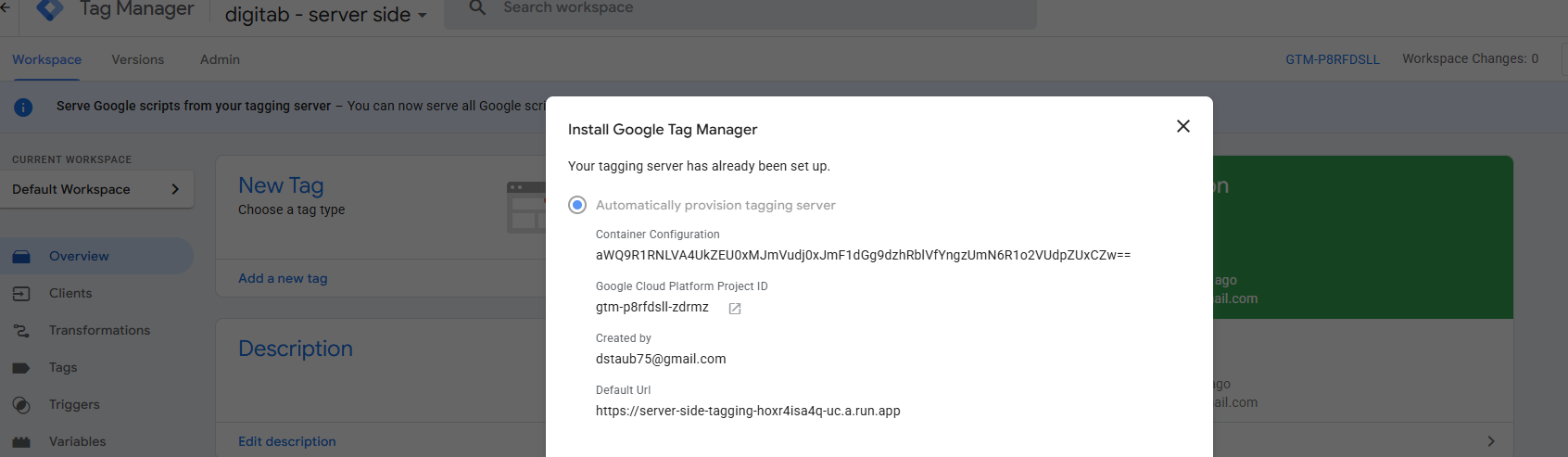
Set a secure and certified static IP address (The IP address of the Load Balancer Frontend) - The Load Balancer collects traffic from all the domains
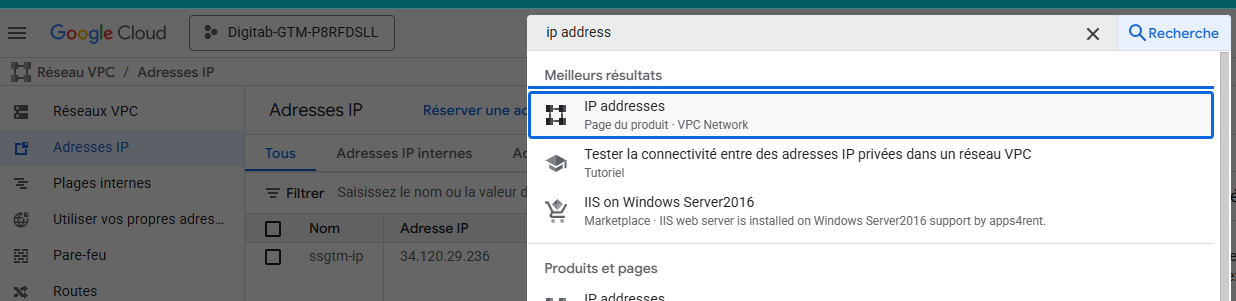
- Go to the GC IP addresses section
- Activate the Compute Engine API if needed
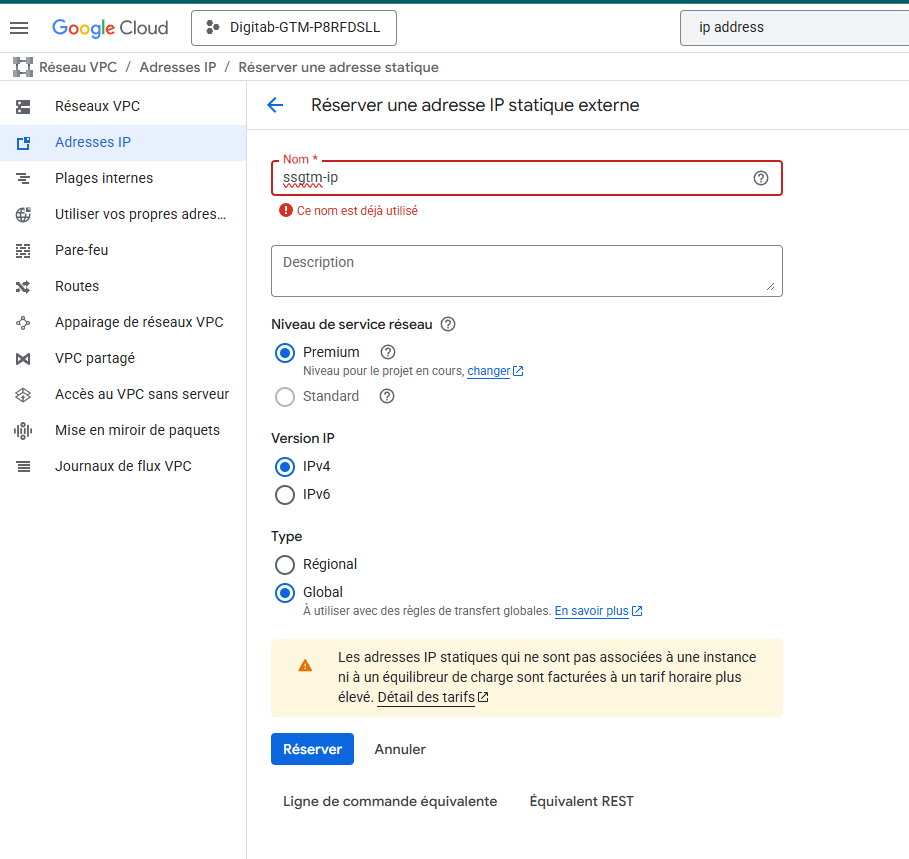
- Click on Reserve Static IP address
- Name the IP address, e.g. ‘ssgtm-ip’
- Go to the Network Service Tier and make sure ‘Premium’ is selected. Premium Network Tier is strongly recommended to ensure optimal latency and reliability for server-side tagging workloads.
- IP version should be IPv4
- Under Type settings, select ‘Global’ to make it available globally. The IP must be Global, not Regional. Global IPs are required for HTTPS global load balancers. Selecting a regional IP will cause the load balancer setup to fail.
- Click Reserve
- Copy your IP Address!
Map the IP Address in your DNS Manager
- Go to your DNS Manager provider
- Find your website and select Add a New Record
- Choose ‘A’ as the Record Type
- The name of the record will be the subdomain, e.g. sgtm, data, tracking, etc. I would recommend using non-related data as some ad blocker could use popular keywords to block tracking. I have chosen “data.”
- In the Value section, add the IP Address you copied

- Save changes
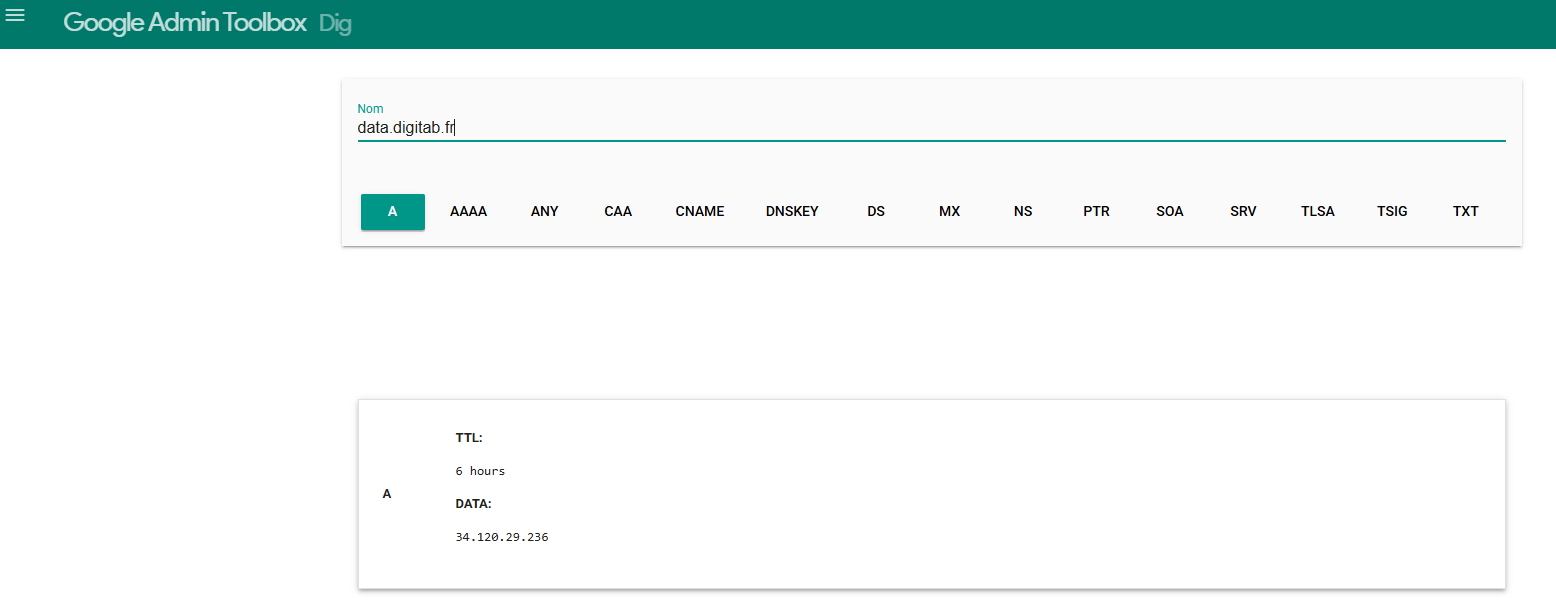
- Verify that the address has been created correctly. DNS propagation may take several minutes to several hours depending on your provider. Until propagation is complete, SSL certificates and load balancer validation will not work.
Create an SSL (Secure Sockets Layer) certificate
Google-managed certificates are automatically renewed, which eliminates operational risk. Self-managed certificates are not recommended unless you have compliance constraints.
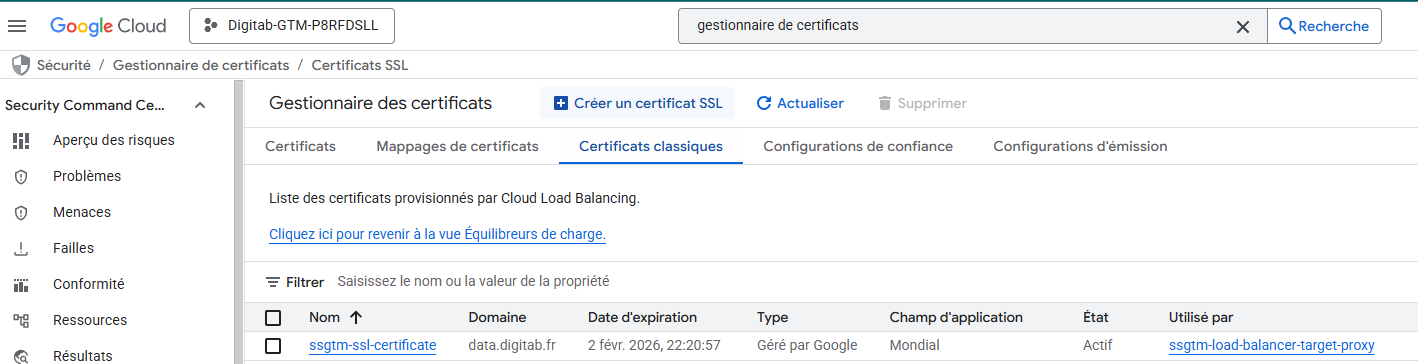
- Go to the Certificate Manager
- Activate the Certificate Manager API
- Go to Create an SSL certificate
- Name the certificate as ‘ssgtm-ssl-certificate’
- In Create mode, select Create Google-managed certificate
- Under domains, add the custom domain mapped in the DNS (like data.digitab.fr)
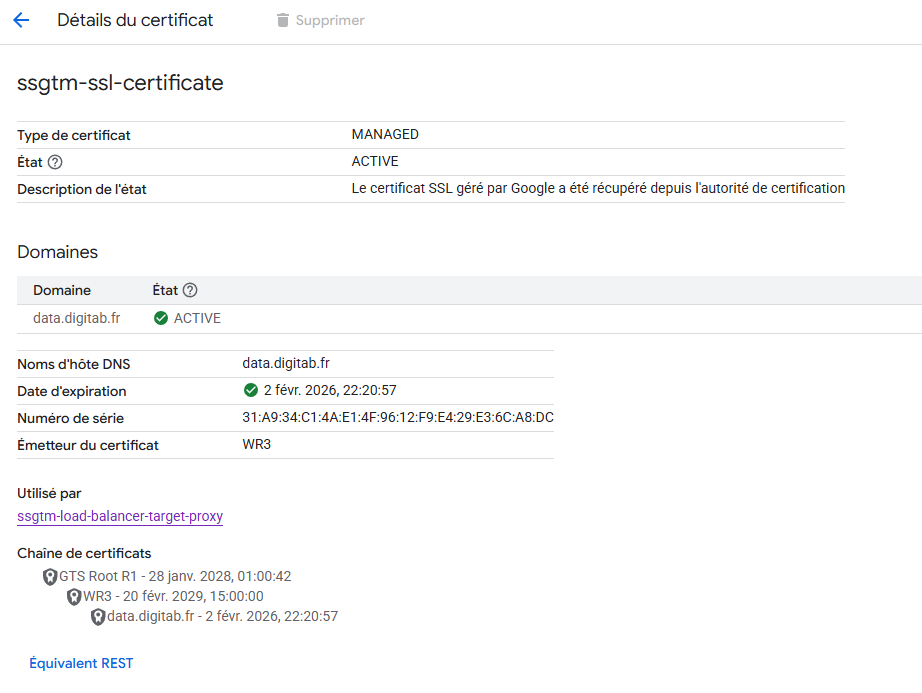
New certificates typically require 10–30 minutes to be fully provisioned. During this time, HTTPS will fail—this is normal.
Create a Load Balancer Steps
The load balancer acts as a secure proxy between your users and your Cloud Run instance. It provides SSL termination, routing, and enhanced performance (HTTP/3/QUIC).
- Configure the Load Balancer
- The Load balancer handles the incoming traffic from your users' devices
- Go to Load Balancing
- Click on Create a load balancer

- For Type of load balancer, select Application load balancer (HTTP/HTTPS)
- For Public-facing or internal, select Public-facing (external)
- For Global or single-region deployments, select Best for global workloads
- In Load balancer generation select, Global external application load balancer
- Click Configure to create, then
- Name the load balancer, e.g., ssgtm_load-balancer
Configure the Load Balancer Front End
The frontend configuration is highly sensitive: selecting the wrong certificate or IP address will cause persistent 404/502 errors.
- Go to Frontend configuration
- Name the load balancer’s front end, for example, ssgtm-lb-front-end
- Protocol must be HTTPS
- Keep IPv4
- From the drop-down, choose the IP address we created before
- Keep Port 443
- For the certificate, select the SSL certificate we created before, ‘ssgtm-ssl-certificate’
- Keep the SSL policy to the GCP default
- Keep the HTTP/3 (QUIC) negotiation to Automatic (default)
- Enable HTTP to HTTPS redirect
- Click Done
Configure the Load Balancer backend
- Go to backend configuration: here is where you configure the GTM server-side
- Click on the Backend services and backend buckets drop-down and select CREATE BACKEND SERVICE
- Name the Backend, e.g., ssgtm-lb-back-end
- In backend type, select Serverless network endpoint group
- Under New backend, select CREATE SERVERLESS NETWORK ENDPOINT GROUP
Then, in Create Serverless network endpoint group, name the setting adding in the label, the region where you set the Cloud Run or App Engine instance then name it ssgtm-network-endpoint-eu9. The Serverless NEG is mandatory for routing traffic from the load balancer to Cloud Run. The region of the NEG must match the region of your Cloud Run service.
- Next, select in Region, the region accordingly
- In the Serverless network endpoint group type select Cloud Run
- Then, in Services, select the Cloud Run or App Engine GTM Server-Side instance that you created
- Do not touch the other options
- Then click Create
- Next, continue the configuration menu, and disable Cloud CDN for now. Do not enable Cloud CDN. GTM Server-Side must not be cached, otherwise tracking payloads may not execute or may be served incorrectly.
You can enable Logging for the Load Balancer backend, but it will create more cost, it’s recommended leaving it for the moment,
- Under Security, set to set the drop down to none and revolve Cloud Armor as well
- Click create
- Then you will see an overview of the backend, click ok
Routing rules config
- Next go to Routing Rules,
- In Routing rules, select the Mode: Simple host and path rule
- Click on ADD HOST AND PATH RULE
- On Host add your mapped subdomain, on this tutorial was xxx.domain.com
- In path select /*
- In backend, select the backend we set
- Then go to Review and finalise
- Review the changes and then create the Load Balancer
- Test the setup
- Confirm the Load Balancer was set correctly
- Check the load balancer
- Check the Front end
- Check the backend
- Confirm the domain settings
- Check the Classic Certificate in Certificate Manager
- Verify the subdomain was mapped correctly
Add the Custom Subdomain into GTM Server Side settings
- Test the subdomain in tag assistant and page path /healthy
by accessing to mysubmain.mydomain.com/healthy, you should see “OK” in the page
- Go and check on https://toolbox.googleapps.com/apps/dig/
- Test the Load Balancer Monitoring feature to see the flow of traffic
- In GTM - container settings, add your server
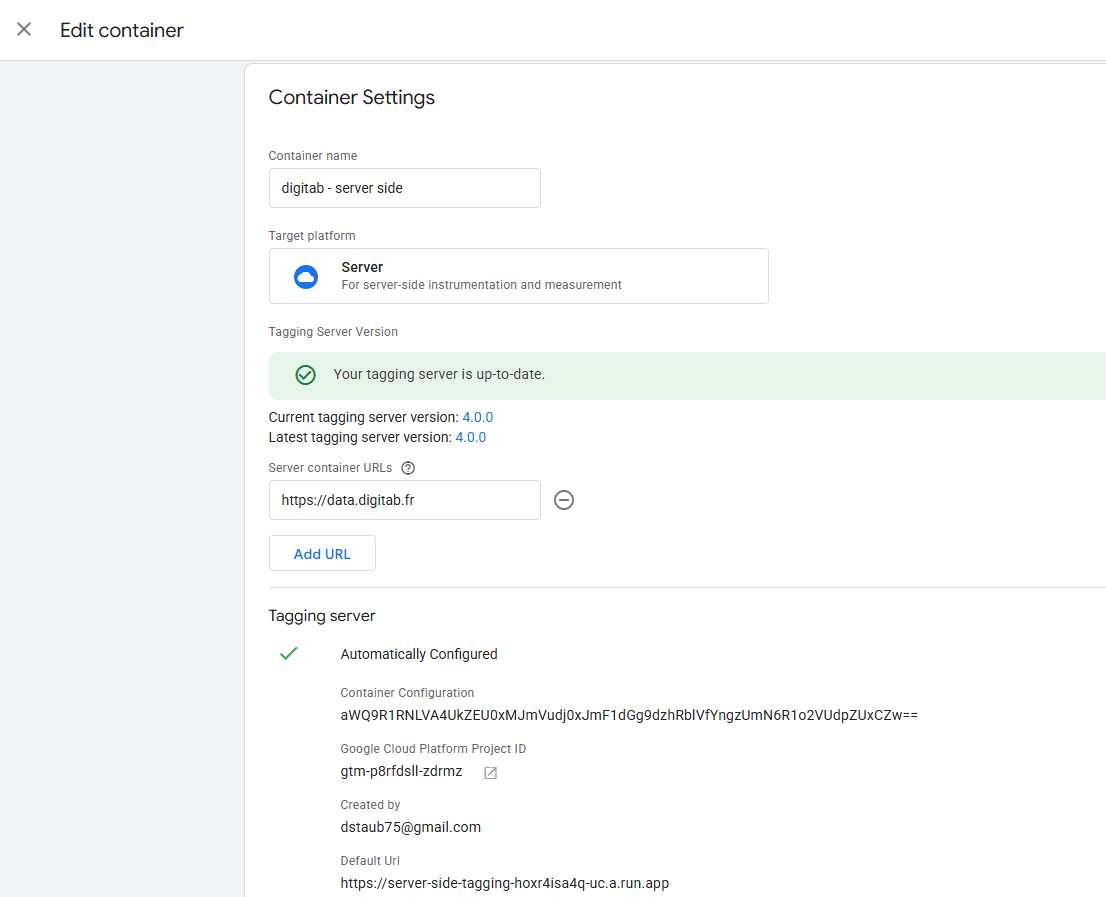
- Click on Preview to test


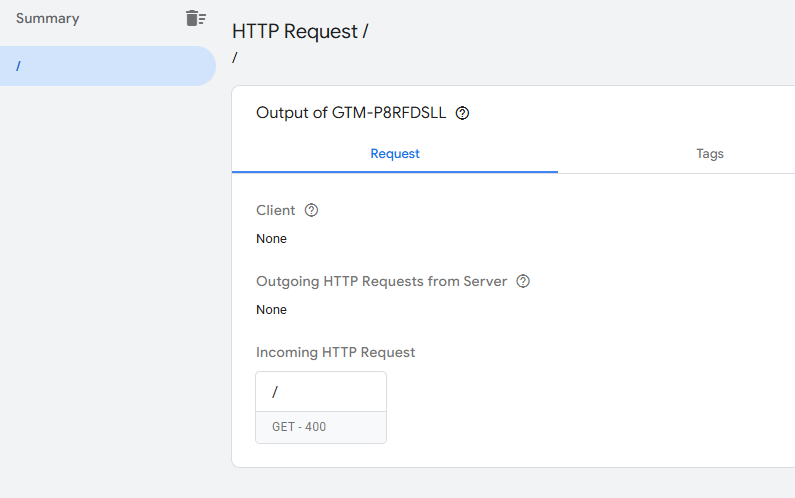
- Then open a new tab and visit your subdomain, a HTTP ERROR 400 occurs
- Go back on the preview tab and check the line “/”, it validates the signal, you are done !